
At Galactic Ideas, we build websites with accessibility in mind from the start. That includes the design system, page structure, colors, typography, navigation, buttons, templates, and other technical details that help support ADA and WCAG accessibility best practices.
For most clients, you do not need to worry about the technical side. Your website has already been set up with accessible patterns in place. Where accessibility can start to slip is during everyday content updates, such as editing copy, adding images, copying a page template, creating a new section, or publishing a news post. The good news is that a few simple habits can help keep your website clear, consistent, and accessible over time.
1. Keep the Existing Page Structure When Possible
If your website includes page templates or pre-built sections, use those as your starting point.
When copying an existing page or section, try to preserve the overall structure:
- Keep the existing heading styles.
- Keep buttons styled as buttons.
- Keep image areas in their intended places.
- Keep section spacing consistent.
- Avoid changing layouts unless necessary.
These templates were created intentionally, so reusing them is usually the safest and easiest way to keep the site accessible and visually consistent.
2. Use Headings for Structure, Not Just Style
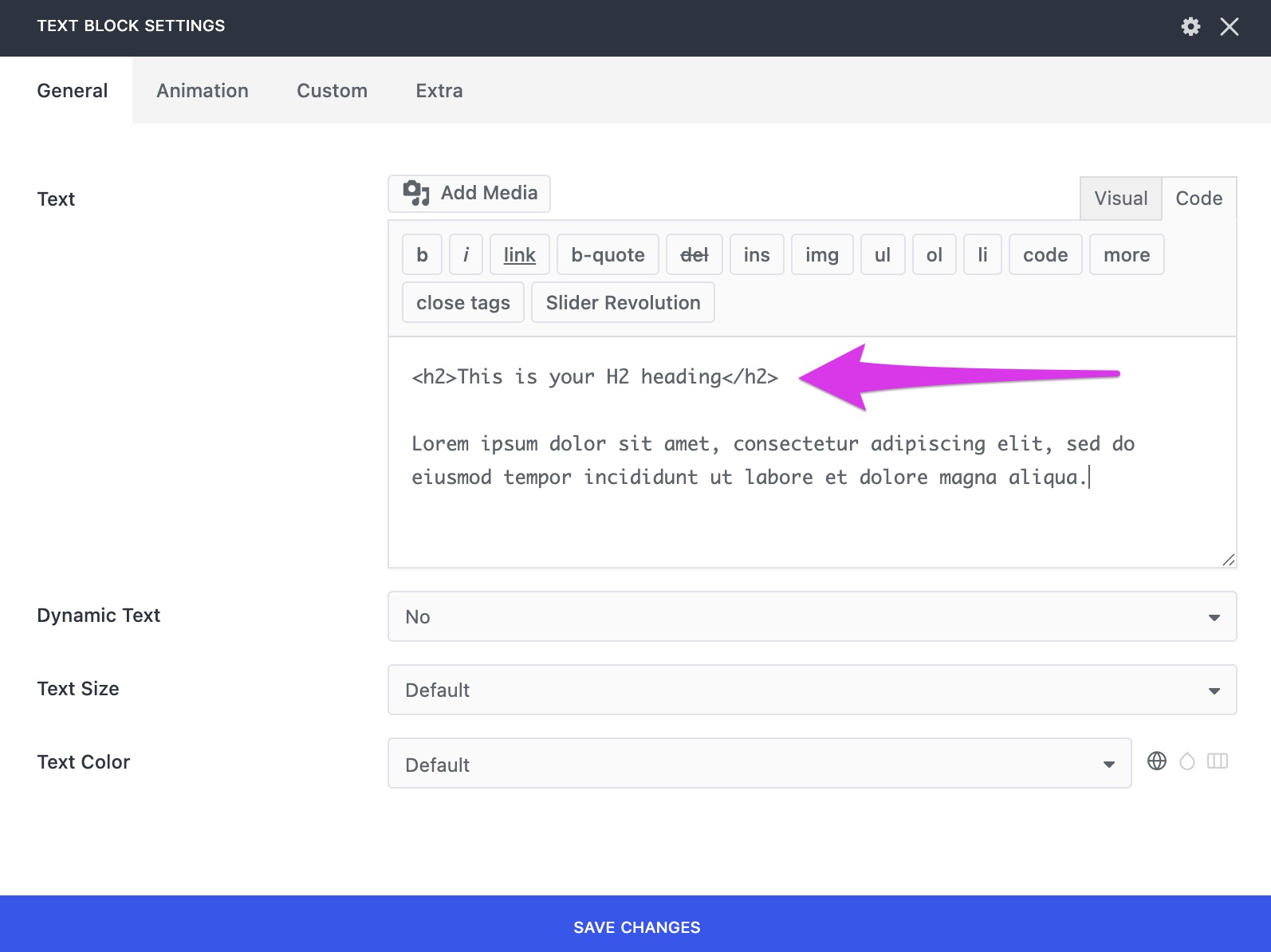
Headings help organize the page for both visual users and people using assistive technology. In most cases, you will only need to use the heading styles already included in your template.
A simple page structure might look like this:
- H1: Main page title
- H2: Main section headings
- H3: Smaller subsections within a section
Try not to skip around between heading levels just because one looks better visually. For example, do not use an H3 just because it is smaller. If the text is introducing a major new section, it should usually remain an H2. When in doubt, follow the heading pattern already used on the page.
3. Add Simple Alt Text to New Images
When you upload a new image, add a short description of what is shown, especially if the image adds meaning to the page.
Good alt text examples:
- Firefighters speaking with students during a school visit
- Community members attending an open house event
- Exterior view of the newly renovated station entrance
Alt text does not need to be long. One clear sentence or phrase is usually enough. If the image is purely decorative and does not add important information, the alt text can usually be minimal. But if the image helps tell the story, describe it briefly.
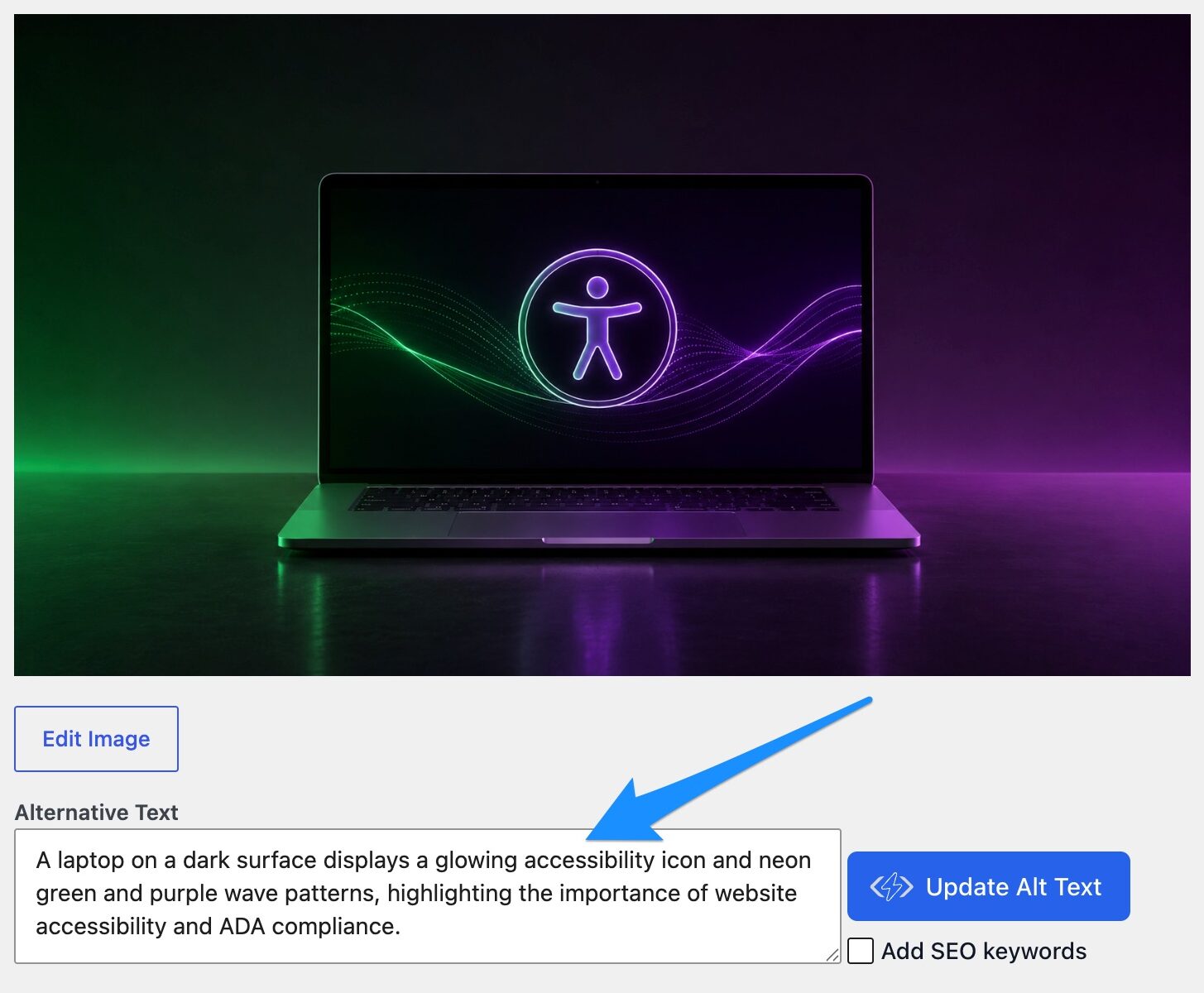
If you’re looking for a plugin to help automate this process, AltText.ai is a great solution. The plugin uses AI to generate descriptive alt text for images when they’re uploaded to WordPress, and it can also bulk-generate alt text for images that already exist in your media library. This can save a lot of time, especially on image-heavy sites, while still giving you the ability to review and refine the descriptions as needed.
4. Write Clear, Helpful Link Text
Avoid links that only say:
- Click here
- Learn more
- Read more
- Download
Instead, make the link describe what the user is clicking:
- Download the 2026 Annual Report
- View upcoming board meeting dates
- Read more about our community programs
- Register for the training session
This makes the page easier to understand and helps people using screen readers navigate more easily.
For news posts, this is especially important. Instead of “click here for details,” write something like “View the full event schedule” or “Download the meeting agenda.”
5. Be Thoughtful When Adding Buttons
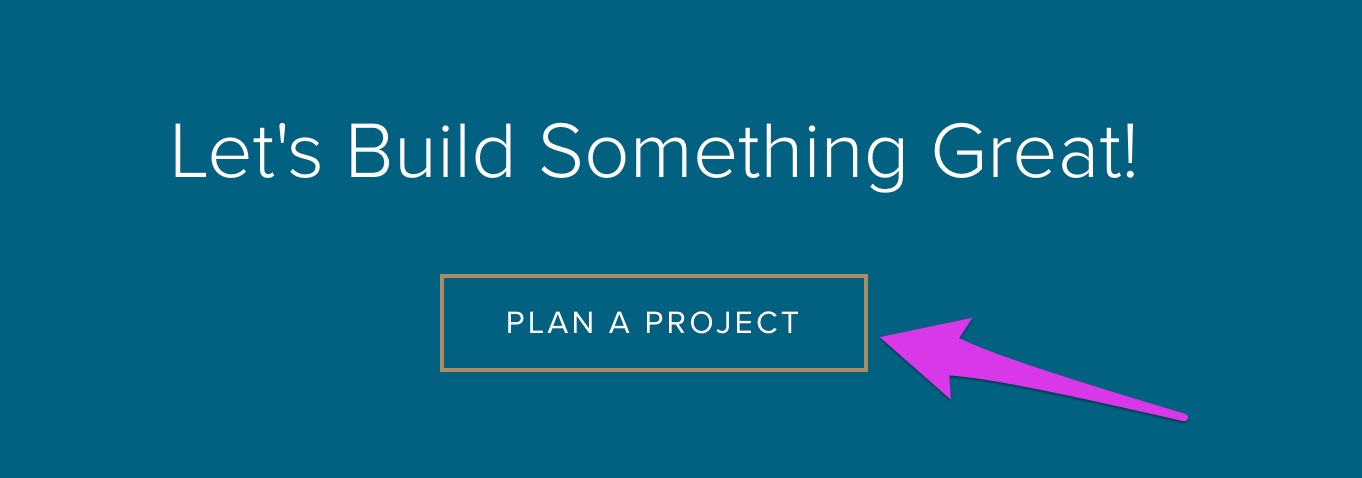
Buttons should clearly describe the action.
Good button labels:
- Register for the Event
- Download the Guide
- Contact Our Team
- View Current Openings
Less helpful button labels:
- Submit
- Go
- More
- Click Here
If you are adding a new section and need a call-to-action, make sure the button tells users what will happen next.
6. Do Not Rely on Text Inside Images
Try not to use images as the only place where important information appears.
For example, if you upload an event flyer that includes a date, time, location, and registration details, make sure that same information is also added as regular text on the page or news post.
This helps people using screen readers, people on mobile devices, and users who may have trouble reading small text inside an image. A good rule of thumb: if someone needs the information, do not make them get it only from an image.
7. Use Descriptive File Names
Before uploading a PDF, image, or document, rename the file so it is clear and useful.
Instead of:
- IMG_4027.jpg
- scan-final.pdf
- document-v3-new.pdf
Use:
- station-open-house.jpg
- 2026-board-meeting-agenda.pdf
- community-risk-reduction-guide.pdf
Clear file names help with accessibility, search, organization, and future website maintenance.
8. Be Careful with PDFs
In many cases, information is better added directly to a webpage or news post instead of being available only as a PDF. Webpages are usually easier to read on mobile, easier to search, easier to update, and easier to make accessible.
If you do need to upload a PDF, avoid scanned, image-only documents whenever possible. A good PDF should include selectable text, a clear document title, and a descriptive file name so users and search tools can understand what the file contains.
For important public-facing documents — especially forms, reports, notices, agendas, meeting packets, policy documents, or annual reports — it may be worth having the PDF reviewed or remediated for accessibility.
This is especially important for organizations that serve the public or are required to meet ADA or digital accessibility standards, including:
- Government agencies
- Fire departments and public safety organizations
- Utility districts
- School districts and universities
- Healthcare organizations
- Libraries, parks, and public service organizations
- Nonprofits receiving public funding
- Large organizations with high public visibility or frequent document publishing
Automated solutions like DocAccess can help convert PDFs into accessible HTML versions that are easier for people to use with screen readers, keyboard navigation, mobile devices, and translation tools. DocAccess can also provide features like document outlines, searchable transcripts, language translation, and question-and-answer tools, making long or complex public documents easier to navigate and understand.
Keeping Your Website Accessible Over Time
Your website was built with accessible patterns already in place. The best thing you can do when making updates is to preserve those patterns, keep content clear, and avoid adding anything that makes information harder to find, read, or use.
For most updates, accessibility comes down to simple content habits:
- Use the existing templates.
- Write clear headings.
- Use descriptive links and buttons.
- Add simple alt text to images.
- Avoid relying on text inside images.
- Keep files and PDFs organized.
- Check your work on mobile.
These small steps help keep your website useful, professional, and accessible for the widest possible audience.